
Member Dashboard
The Member Dashboard is the page your members land on when they sign in. It's the one page most members see every visit, and it's where each of them finds out where their own membership stands.
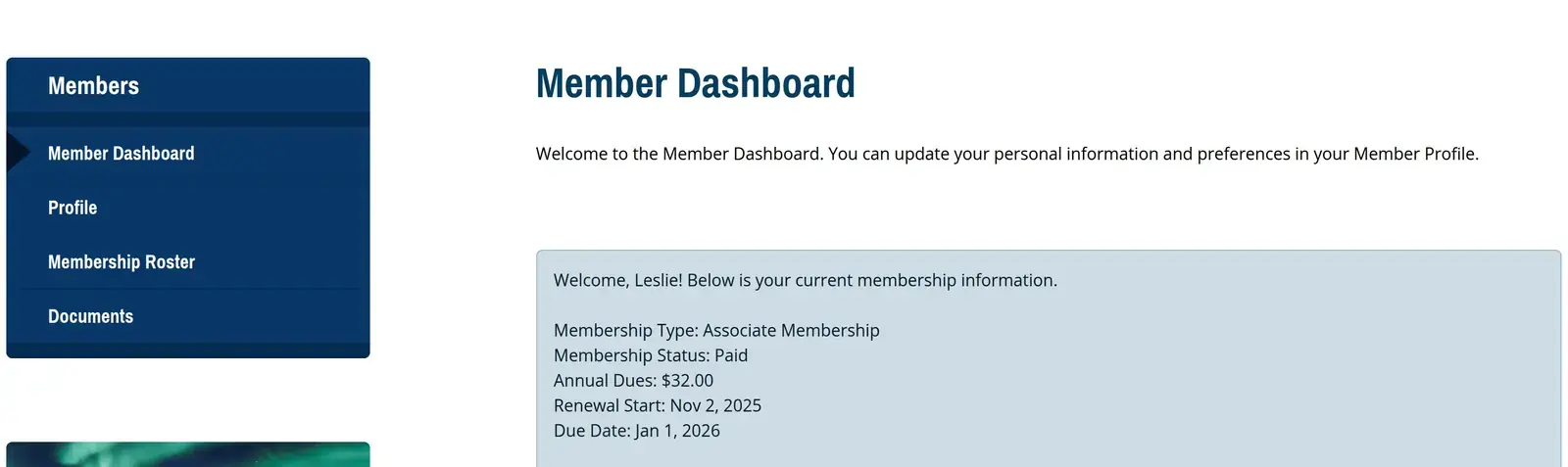
Members land here when they sign in
Signing in takes a member straight to the dashboard. If they clicked a members-only link first and were asked to sign in on the way, they carry on to that page instead. There's nothing to switch on for this. It's how signing in works for every club.
Each member sees their own membership status
This is what makes the dashboard worth setting up rather than leaving empty.
Add a Membership Message Section to the page and each member sees a message matched to their own status. Unpaid members see your renewal message, late members see your late message, lapsed members see your lapsed message, and everyone else can see a general message. You write these on the Membership Type, which is why one section covers every kind of member you have. Your wording can include that member's renewal date and the amount they owe, filled in for whoever is reading.
If your club takes payments through Clubistry, the section gives each member a payment link for their own renewal and confirms it on screen when they come back. A member can settle their dues without emailing anyone or waiting for a reply.
Lapsed members can reach this page by default. Unless an administrator changes the page's permissions, someone whose membership has lapsed can still sign in and land here, which makes it the one place they reliably see what to do next. Keep that in mind when you write their message.
Coming back isn't always a matter of paying. Your club might ask for a fresh application, a sponsor, or a board decision before a lapsed membership is restored. Write your lapsed message as the steps to re-join, whatever those are for your club, rather than assuming a payment settles it.
This page is protected
Clubistry protects the dashboard because signing in depends on it and renewal reminder emails link to it. You can't rename it and you can't delete it.
You can still switch it off with the Active toggle, which is worth understanding before you do. Turning it off means every member who signs in lands on a missing page. Leave it active unless your club runs without a member area entirely.
What to put on it
The dashboard is an ordinary page in every other respect, so you build it in Pages like any other.
Whatever you add is what members see, and an empty page looks empty. A short welcome, the Membership Message Section, and links to the pages members use most will serve most clubs well.
Related topics
- Membership Types - Where you write the renewal, late, and lapsed messages.
- Set Up Clubistry Payments - What has to be in place before the payment link appears.
- Pages - How to edit this page and add sections to it.
- Lapsed Members - What stays available after a membership lapses.