
Roster
The Roster is your club's member directory on the website. Members use it to find each other. Each member chooses whether their own contact details are listed, and your club chooses who can see the roster at all.
Where the roster comes from
The roster appears wherever you add the Roster section to a page. Most clubs use the ready-made Membership Roster page that comes with the site. Signed-in members reach it under Members in the main navigation, alongside their dashboard and profile. You can put the Roster section on a different page instead if that suits your club better.
Who can open it is decided by the permissions on the page holding it, the same as any other page. See Permissions and Access Control.
Two views of the same directory
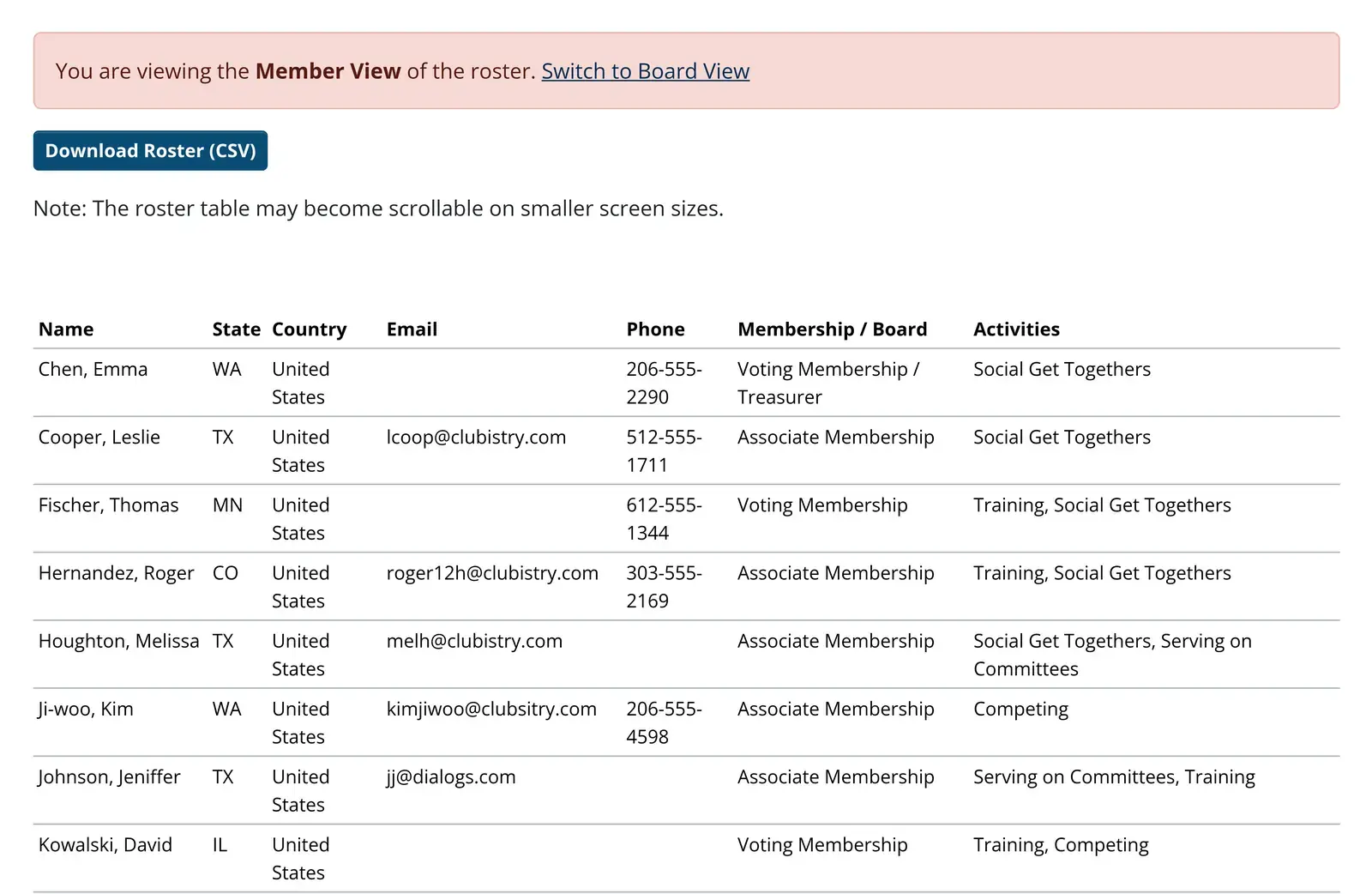
Board members, administrators and super administrators get a Board View of the roster, usually with more columns than everyone else. All other members see the Member View.
Board members see Board View by default when they open the roster. A notice on the page tells them which view they're currently in and gives them a link to switch to Member View.
What members choose to show on the roster
Members choose whether their email address and phone number appear on the roster, and they make that choice on their own profile. Member View always respects it.
Board View doesn't. In Roster Settings, Board View honors member privacy settings is off by default. While it is off, board members see everyone's contact details whatever individual members have chosen, and the notice on screen tells them so. If this setting is checked, Board View follows each member's choices, and every member gains a third choice on their profile for their mailing address.
Columns and who gets listed
Roster Settings is where you choose which membership types appear and which columns each view shows. You don't have to set any of it up to begin with, because both views start with a sensible set of columns until you change them.
You don't have to list every membership type. Junior and minor members are the most common one to leave out, because most clubs would rather not publish children's contact details in a directory. Honorary members are another, and so is any membership type you set up for testing.
Any member custom fields you've marked for the roster appear as extra columns after the ones you've configured.
Downloading the roster
A Download Roster (CSV) link sits above the directory and gives you a file that opens in Excel, Numbers, or Google Sheets. It's always there, and there's no setting to hide it.
The file matches the view you're in, with the same columns, the same membership types and the same privacy behavior, so what you export is what's on screen. Only board members, administrators and super administrators can download the board export.
If the roster doesn't look right
- Someone can see it who shouldn't, or a member can't reach it. Check the permissions on the page holding the roster.
- Email, phone, or address columns are blank. Those members chose to keep them private, which is the roster working as intended.
- Members are missing entirely. Check which membership types are included in Roster Settings.
Related topics
- Roster Settings - Set the membership types, columns, and Board View privacy behavior.
- Page Content Sections - Roster Section - The section used to place the roster on a page.
- Member Profile - Where members make their privacy choices.
- Permissions and Access Control - Control who can open the page holding the roster.